|
|

楼主 |
发表于 2021-6-5 18:11:29
|
显示全部楼层
"""
.. moduleauthor:: easygui developers and Stephen Raymond Ferg
.. default-domain:: py
.. highlight:: python
Version |release|
"""
import os
import re
try:
from . import global_state
from . import utils as ut
from .text_box import textbox
except (SystemError, ValueError, ImportError):
import global_state
import utils as ut
from text_box import textbox
try:
import tkinter as tk # python 3
import tkinter.font as tk_Font
except (SystemError, ValueError, ImportError):
import Tkinter as tk # python 2
import tkFont as tk_Font
def demo_buttonbox_1():
print("hello from the demo")
value = buttonbox(
title="First demo",
msg="bonjour",
choices=["Button[1]", "Button[2]", "Button[3]"],
default_choice="Button[2]")
print("Return: {}".format(value))
def demo_buttonbox_2():
package_dir = os.path.dirname(os.path.dirname(os.path.realpath(__file__))) ;# My parent's directory
images = list()
images.append(os.path.join(package_dir, "python_and_check_logo.gif"))
images.append(os.path.join(package_dir, "zzzzz.gif"))
images.append(os.path.join(package_dir, "python_and_check_logo.png"))
images = [images, images, images, images, ]
value = buttonbox(
title="Second demo",
msg="Now is a good time to press buttons and show images",
choices=['ok', 'cancel'],
images=images)
print("Return: {}".format(value))
# REF: http://stackoverflow.com/questio ... uple-but-not-string
def is_sequence(arg):
return hasattr(arg, "__getitem__") or hasattr(arg, "__iter__")
def is_string(arg):
ret_val = None
try:
ret_val = isinstance(arg, basestring) #Python 2
except:
ret_val = isinstance(arg, str) #Python 3
return ret_val
def buttonbox(msg="",
title=" ",
choices=("Button[1]", "Button[2]", "Button[3]"),
image=None,
images=None,
default_choice=None,
cancel_choice=None,
callback=None,
run=True):
"""
Display a msg, a title, an image, and a set of buttons.
The buttons are defined by the members of the choices global_state.
:param str msg: the msg to be displayed
:param str title: the window title
:param list choices: a list or tuple of the choices to be displayed
:param str image: (Only here for backward compatibility)
:param str images: Filename of image or iterable or iteratable of iterable to display
:param str default_choice: The choice you want highlighted when the gui appears
:return: the text of the button that the user selected
"""
if image and images:
raise ValueError("Specify 'images' parameter only for buttonbox.")
if image:
images = image
bb = ButtonBox(
msg=msg,
title=title,
choices=choices,
images=images,
default_choice=default_choice,
cancel_choice=cancel_choice,
callback=callback)
if not run:
return bb
else:
reply = bb.run()
return reply
class ButtonBox(object):
""" Display various types of button boxes
This object separates user from ui, defines which methods can
the user invoke and which properties can he change.
It also calls the ui in defined ways, so if other gui
library can be used (wx, qt) without breaking anything for the user.
"""
def __init__(self, msg, title, choices, images, default_choice, cancel_choice, callback):
""" Create box object
Parameters
----------
msg : string
text displayed in the message area (instructions...)
title : str
the window title
choices : iterable of strings
build a button for each string in choices
images : iterable of filenames, or an iterable of iterables of filenames
displays each image
default_choice : string
one of the strings in choices to be the default selection
cancel_choice : string
if X or <esc> is pressed, it appears as if this button was pressed.
callback: function
if set, this function will be called when any button is pressed.
Returns
-------
object
The box object
"""
self.callback = callback
self.ui = GUItk(msg, title, choices, images, default_choice, cancel_choice, self.callback_ui)
def run(self):
""" Start the ui """
self.ui.run()
ret_val = self._text
self.ui = None
return ret_val
def stop(self):
""" Stop the ui """
self.ui.stop()
def callback_ui(self, ui, command):
""" This method is executed when buttons or x is pressed in the ui.
"""
if command == 'update': # Any button was pressed
self._text = ui.choice
self._choice_rc = ui.choice_rc
if self.callback:
# If a callback was set, call main process
self.callback(self)
else:
self.stop()
elif command == 'x':
self.stop()
# self._text = None
self._text = ui._cancel_choice
elif command == 'cancel':
self.stop()
# self._text = None
self._text = ui._cancel_choice
# methods to change properties --------------
@property
def msg(self):
"""Text in msg Area"""
return self._msg
@msg.setter
def msg(self, msg):
self._msg = self.to_string(msg)
self.ui.set_msg(self._msg)
@msg.deleter
def msg(self):
self._msg = ""
self.ui.set_msg(self._msg)
@property
def choice(self):
""" Name of button selected """
return self._text
@property
def choice_rc(self):
""" The row/column of the selected button (as a tuple) """
return self._choice_rc
# Methods to validate what will be sent to ui ---------
def to_string(self, something):
try:
basestring # python 2
except NameError:
basestring = str # Python 3
if isinstance(something, basestring):
return something
try:
text = "".join(something) # convert a list or a tuple to a string
except:
textbox(
"Exception when trying to convert {} to text in self.textArea"
.format(type(something)))
sys.exit(16)
return text
class GUItk(object):
""" This is the object that contains the tk root object"""
def __init__(self, msg, title, choices, images, default_choice, cancel_choice, callback):
""" Create ui object
Parameters
----------
msg : string
text displayed in the message area (instructions...)
title : str
the window title
choices : iterable of strings
build a button for each string in choices
images : iterable of filenames, or an iterable of iterables of filenames
displays each image
default_choice : string
one of the strings in choices to be the default selection
cancel_choice : string
if X or <esc> is pressed, it appears as if this button was pressed.
callback: function
if set, this function will be called when any button is pressed.
Returns
-------
object
The ui object
"""
self._title = title
self._msg = msg
self._choices = choices
self._default_choice = default_choice
self._cancel_choice = cancel_choice
self.callback = callback
self._choice_text = None
self._choice_rc = None
self._images = list()
self.boxRoot = tk.Tk()
# self.boxFont = tk_Font.Font(
# family=global_state.PROPORTIONAL_FONT_FAMILY,
# size=global_state.PROPORTIONAL_FONT_SIZE)
self.boxFont = tk_Font.nametofont("TkFixedFont")
self.width_in_chars = global_state.fixw_font_line_length
# default_font.configure(size=global_state.PROPORTIONAL_FONT_SIZE)
self.configure_root(title)
self.create_msg_widget(msg)
self.create_images_frame()
self.create_images(images)
self.create_buttons_frame()
self.create_buttons(choices, default_choice)
@property
def choice(self):
return self._choice_text
@property
def choice_rc(self):
return self._choice_rc
# Run and stop methods ---------------------------------------
def run(self):
self.boxRoot.mainloop()
self.boxRoot.destroy()
def stop(self):
# Get the current position before quitting
#self.get_pos()
self.boxRoot.quit()
# Methods to change content ---------------------------------------
def set_msg(self, msg):
self.messageArea.config(state=tk.NORMAL)
self.messageArea.delete(1.0, tk.END)
self.messageArea.insert(tk.END, msg)
self.messageArea.config(state=tk.DISABLED)
# Adjust msg height
self.messageArea.update()
numlines = self.get_num_lines(self.messageArea)
self.set_msg_height(numlines)
self.messageArea.update()
def set_msg_height(self, numlines):
self.messageArea.configure(height=numlines)
def get_num_lines(self, widget):
end_position = widget.index(tk.END) # '4.0'
end_line = end_position.split('.')[0] # 4
return int(end_line) + 1 # 5
def set_pos(self, pos):
self.boxRoot.geometry(pos)
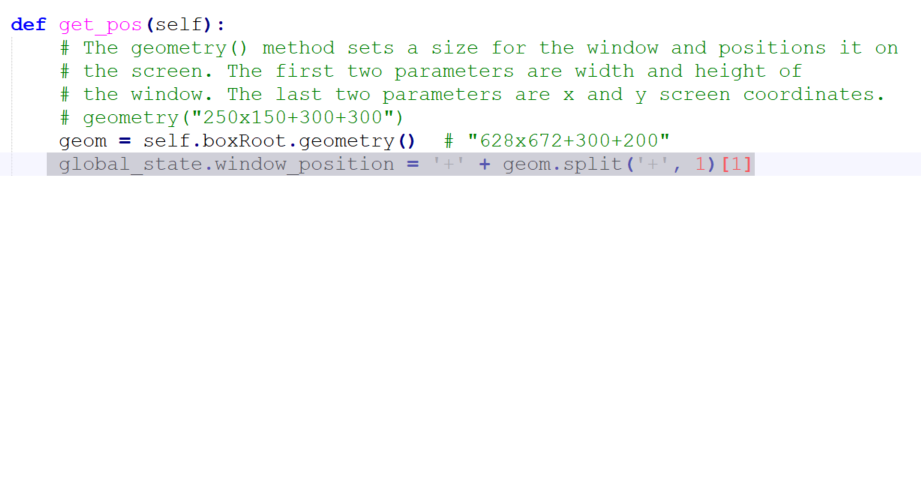
def get_pos(self):
# The geometry() method sets a size for the window and positions it on
# the screen. The first two parameters are width and height of
# the window. The last two parameters are x and y screen coordinates.
# geometry("250x150+300+300")
geom = self.boxRoot.geometry() # "628x672+300+200"
global_state.window_position = '+' + geom.split('+', 1)[1]
# Methods executing when a key is pressed -------------------------------
def x_pressed(self):
self._choice_text = self._cancel_choice
self.callback(self, command='x')
def cancel_pressed(self, event):
self._choice_text = self._cancel_choice
self.callback(self, command='cancel')
def button_pressed(self, button_text, button_rc):
self._choice_text = button_text
self._choice_rc = button_rc
self.callback(self, command='update')
def hotkey_pressed(self, event=None):
"""
Handle an event that is generated by a person interacting with a button. It may be a button press
or a key press.
TODO: Enhancement: Allow hotkey to be specified in filename of image as a shortcut too!!!
"""
# Determine window location and save to global
# TODO: Not sure where this goes, but move it out of here!
m = re.match("(\d+)x(\d+)([-+]\d+)([-+]\d+)", self.boxRoot.geometry())
if not m:
raise ValueError(
"failed to parse geometry string: {}".format(self.boxRoot.geometry()))
width, height, xoffset, yoffset = [int(s) for s in m.groups()]
global_state.window_position = '{0:+g}{1:+g}'.format(xoffset, yoffset)
# Hotkeys
if self._buttons:
for button_name, button in self._buttons.items():
hotkey_pressed = event.keysym
if event.keysym != event.char: # A special character
hotkey_pressed = '<{}>'.format(event.keysym)
if button['hotkey'] == hotkey_pressed:
self._choice_text = button_name
self.callback(self, command='update')
return
print("Event not understood")
# Auxiliary methods -----------------------------------------------
def calc_character_width(self):
char_width = self.boxFont.measure('W')
return char_width
# Initial configuration methods ---------------------------------------
# These ones are just called once, at setting.
def configure_root(self, title):
self.boxRoot.title(title)
self.set_pos(global_state.window_position)
# Resize setup
self.boxRoot.columnconfigure(0, weight=10)
self.boxRoot.minsize(100, 200)
# Quit when x button pressed
self.boxRoot.protocol('WM_DELETE_WINDOW', self.x_pressed)
self.boxRoot.bind("<Escape>", self.cancel_pressed)
self.boxRoot.iconname('Dialog')
def create_msg_widget(self, msg):
if msg is None:
msg = ""
self.messageArea = tk.Text(
self.boxRoot,
width=self.width_in_chars,
state=tk.DISABLED,
padx=(global_state.default_hpad_in_chars) *
self.calc_character_width(),
relief="flat",
background=self.boxRoot.config()["background"][-1],
pady=global_state.default_hpad_in_chars *
self.calc_character_width(),
wrap=tk.WORD,
font=('微软雅黑',36)
)
self.set_msg(msg)
self.messageArea.grid(row=0)
self.boxRoot.rowconfigure(0, weight=10, minsize='10m')
def create_images_frame(self):
self.imagesFrame = tk.Frame(self.boxRoot)
row = 1
self.imagesFrame.grid(row=row)
self.boxRoot.rowconfigure(row, weight=10, minsize='10m')
def create_images(self, filenames):
"""
Create one or more images in the dialog.
:param filenames:
May be a filename (which will generate a single image), a list of filenames (which will generate
a row of images), or a list of list of filename (which will create a 2D array of buttons.
:return:
"""
if filenames is None:
return
# Convert to a list of lists of filenames regardless of input
if is_string(filenames):
filenames = [[filenames,],]
elif is_sequence(filenames) and is_string(filenames[0]):
filenames = [filenames,]
elif is_sequence(filenames) and is_sequence(filenames[0]) and is_string(filenames[0][0]):
pass
else:
raise ValueError("Incorrect images argument.")
images = list()
for _r, images_row in enumerate(filenames):
row_number = len(filenames) - _r
for column_number, filename in enumerate(images_row):
this_image = dict()
try:
this_image['tk_image'] = ut.load_tk_image(filename)
except Exception as e:
print(e)
this_image['tk_image'] = None
this_image['widget'] = tk.Button(
self.imagesFrame,
takefocus=1,
compound=tk.TOP)
if this_image['widget'] is not None:
this_image['widget'].configure(image=this_image['tk_image'])
fn = lambda text=filename, row=_r, column=column_number: self.button_pressed(text, (row, column))
this_image['widget'].configure(command=fn)
sticky_dir = tk.N+tk.S+tk.E+tk.W
this_image['widget'].grid(row=row_number, column=column_number, sticky=sticky_dir, padx='1m', pady='1m', ipadx='2m', ipady='1m')
self.imagesFrame.rowconfigure(row_number, weight=10, minsize='10m')
self.imagesFrame.columnconfigure(column_number, weight=10)
images.append(this_image)
self._images = images # Image objects must live, so place them in self. Otherwise, they will be deleted.
def create_buttons_frame(self):
self.buttonsFrame = tk.Frame(self.boxRoot)
self.buttonsFrame.grid(row=2, column=0)
def create_buttons(self, choices, default_choice):
unique_choices = ut.uniquify_list_of_strings(choices)
# Create buttons dictionary and Tkinter widgets
buttons = dict()
i_hack = 0
for row, (button_text, unique_button_text) in enumerate(zip(choices, unique_choices)):
this_button = dict()
this_button['original_text'] = button_text
this_button['clean_text'], this_button['hotkey'], hotkey_position = ut.parse_hotkey(button_text)
this_button['widget'] = tk.Button(
self.buttonsFrame,
takefocus=1,
text=this_button['clean_text'],
underline=hotkey_position,
font=('微软雅黑',24))
fn = lambda text=button_text, row=row, column=0: self.button_pressed(text, (row, column))
this_button['widget'].configure(command=fn)
this_button['widget'].grid(row=0, column=i_hack, padx='1m', pady='1m', ipadx='2m', ipady='1m')
self.buttonsFrame.columnconfigure(i_hack, weight=10)
i_hack += 1
buttons[unique_button_text] = this_button
self._buttons = buttons
if default_choice in buttons:
buttons[default_choice]['widget'].focus_force()
# Bind hotkeys
for hk in [button['hotkey'] for button in buttons.values() if button['hotkey']]:
self.boxRoot.bind_all(hk, lambda e: self.hotkey_pressed(e), add=True)
if __name__ == '__main__':
demo_buttonbox_1()
demo_buttonbox_2() |
|
 ( 粤ICP备18085999号-1 | 粤公网安备 44051102000585号)


 狗仔卡
狗仔卡 发表于 2021-6-5 18:01:21

 置顶卡
置顶卡 千斤顶
千斤顶 显身卡
显身卡 发表于 2021-6-5 19:51:50
 发表于 2021-6-5 21:53:25