|
|
马上注册,结交更多好友,享用更多功能^_^
您需要 登录 才可以下载或查看,没有账号?立即注册
x
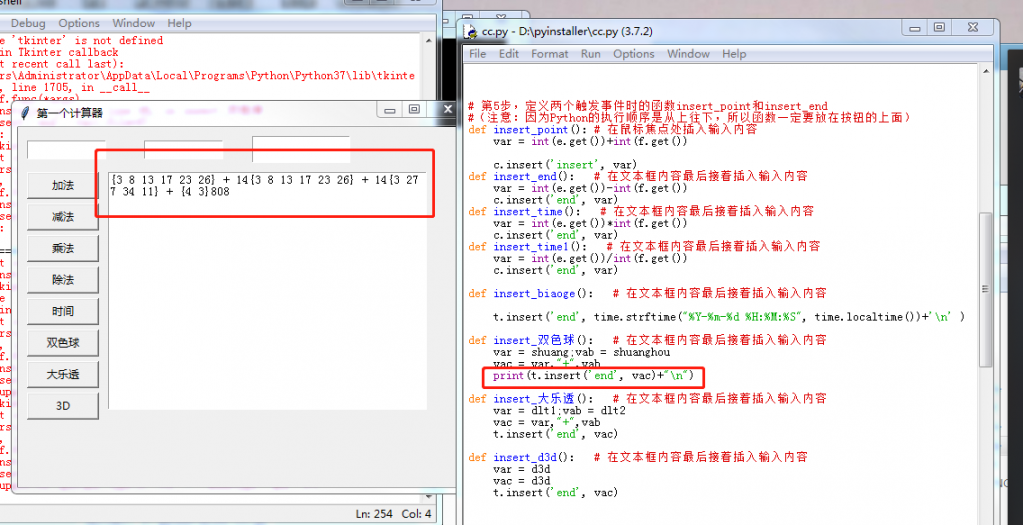
试了好多种办法,输出结果就是不换行,求大神指点。小白,才学到第8课,代码是网上下的然后自己加的一些东西。
- def insert_双色球(): # 在文本框内容最后接着插入输入内容
- var = shuang;vab = shuanghou
- vac = var,"+",vab
- t.insert('end', vac)+"\n"
- print("\n")
- print("\r")
- import tkinter as tk # 使用Tkinter前需要先导入
- import time
-
- # 第1步,实例化object,建立窗口window
- window = tk.Tk()
-
- # 第2步,给窗口的可视化起名字
- window.title('第一个计算器')
-
- # 第3步,设定窗口的大小(长 * 宽)
- window.geometry('500x400') # 这里的乘是小x
-
- # 第4步,在图形界面上设定输入框控件entry框并放置
- e = tk.Entry(window,width=12,show = None)#显示成明文形式,第一个小窗口
- e.place(x=10, y=15)
- f = tk.Entry(window,width=12, show = None)#第三个小窗口
- f.place(x=140, y=15)
- import random#双色球代码
- shuang=random.sample(range(1,33),6)
- listl=(shuang)
- listl.sort()
- shuanghou=random.sample(range(1, 16), 1)
- dlt1=random.sample(range(1,35),5)#大乐透
- listl=(shuang)
- listl.sort()
- dlt2=random.sample(range(1, 12), 2)
- d3d=random.sample(range(0,999),1)#3D
- listl=(d3d)
- listl.sort()
-
- # 第5步,定义两个触发事件时的函数insert_point和insert_end
- #(注意:因为Python的执行顺序是从上往下,所以函数一定要放在按钮的上面)
- def insert_point(): # 在鼠标焦点处插入输入内容
- var = int(e.get())+int(f.get())
-
- c.insert('insert', var)
- def insert_end(): # 在文本框内容最后接着插入输入内容
- var = int(e.get())-int(f.get())
- c.insert('end', var)
- def insert_time(): # 在文本框内容最后接着插入输入内容
- var = int(e.get())*int(f.get())
- c.insert('end', var)
- def insert_time1(): # 在文本框内容最后接着插入输入内容
- var = int(e.get())/int(f.get())
- c.insert('end', var)
-
- def insert_biaoge(): # 在文本框内容最后接着插入输入内容
-
- t.insert('end', time.strftime("%Y-%m-%d %H:%M:%S", time.localtime())+'\n' )
- def insert_双色球(): # 在文本框内容最后接着插入输入内容
- var = shuang;vab = shuanghou
- vac = var,"+",vab
- t.insert('end', vac)+"\n"
- print("\n")
- print("\r")
- def insert_大乐透(): # 在文本框内容最后接着插入输入内容
- var = dlt1;vab = dlt2
- vac = var,"+",vab
- t.insert('end', vac)
- print("\r")
- def insert_d3d(): # 在文本框内容最后接着插入输入内容
- var = d3d
- vac = d3d
- t.insert('end', vac)
- print("\n")
- # 第6步,创建并放置两个按钮分别触发两种情况
- b1 = tk.Button(window, text='加法', width=10, height=1, command=insert_point)
- b1.place(x=10, y=50)
- b2 = tk.Button(window, text='减法', width=10, height=1, command=insert_end)
- b2.place(x=10, y=85)
- b3 = tk.Button(window, text='乘法', width=10, height=1, command=insert_time)
- b3.place(x=10, y=120)
- b4 = tk.Button(window, text='除法', width=10, height=1, command=insert_time1)
- b4.place(x=10, y=155)
- b5 = tk.Button(window, text='时间', width=10, height=1, command=insert_biaoge)
- b5.place(x=10, y=190)
-
- # 第7步,创建并放置一个多行文本
- #框text用以显示,指定height=3为文本框是三个字符高度
- t = tk.Text(window, width=50,height=20)#这个是大窗口
- t.place(x=100, y=50)
- c = tk.Text(window, width=15,height=2)#第一排第四个小窗口
- c.place(x=260, y=10)
- b6 = tk.Button(window, text='双色球', width=10, height=1, command=insert_双色球)
- b6.place(x=10, y=225)
- b7 = tk.Button(window, text='大乐透', width=10, height=1, command=insert_大乐透)
- b7.place(x=10, y=260)
- b5 = tk.Button(window, text='3D', width=10, height=1, command=insert_d3d)
- b5.place(x=10, y=295)
- # 第8步,主窗口循环显示
- window.mainloop()
|
|
 ( 粤ICP备18085999号-1 | 粤公网安备 44051102000585号)


 狗仔卡
狗仔卡 发表于 2019-8-12 04:48:56
 置顶卡
置顶卡 千斤顶
千斤顶 显身卡
显身卡 楼主
楼主